Missing or invalid GTIN in Google Merchant Center: how to fix it in WooCommerce
· Updated
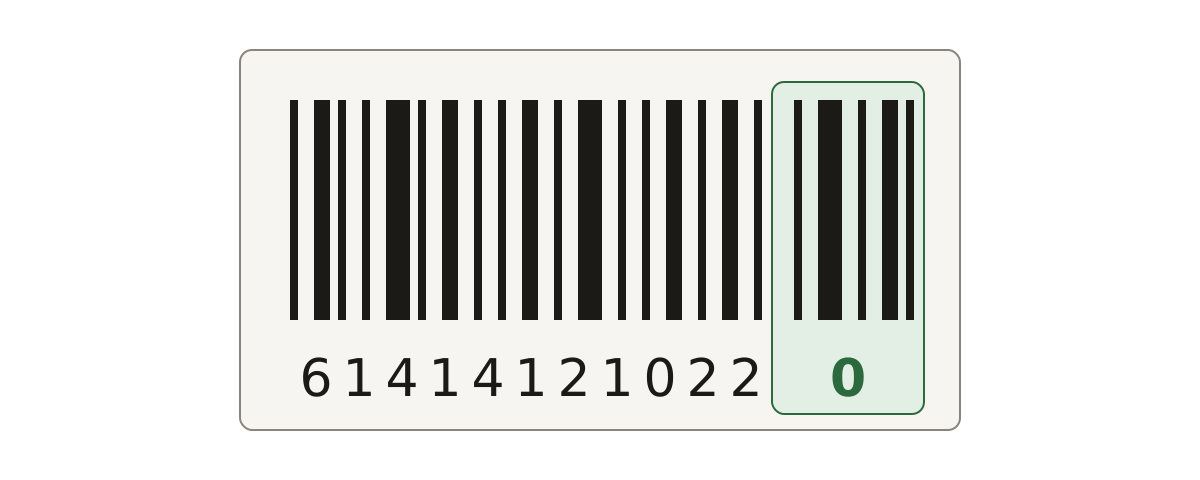
A GTIN issue means Merchant Center looked at the barcode number on a product and either did not accept it or did not find one where it expected one. In a WooCommerce store that number comes from a single field. Once you know which field it is and what Google does with the value, most of these issues take a few minutes to clear.
What Google accepts
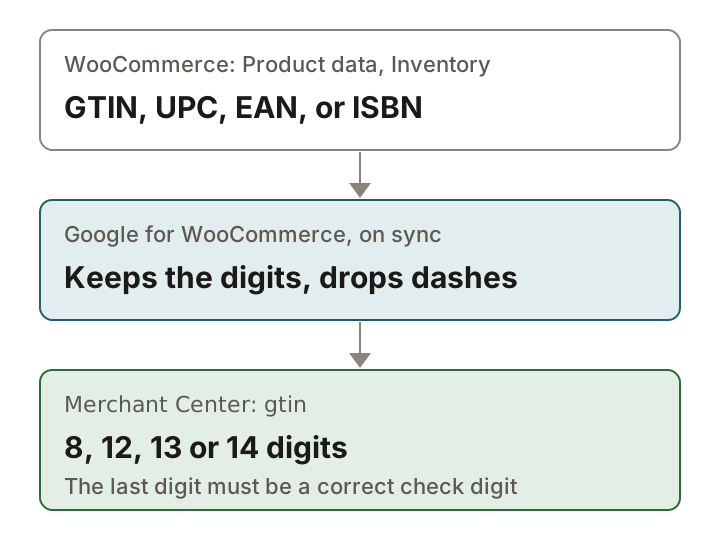
Google's GTIN page says the value is numbers only, and that spaces and dashes are accepted but ignored. The length must be 8, 12, 13 or 14 digits. The names people use for barcodes map to those lengths like this.
| Format | Digits | Note |
|---|---|---|
| UPC (North America) | 12 | Convert an 8-digit UPC-E code to 12 digits. |
| EAN (Europe) | 13 | None. |
| JAN (Japan) | 8 or 13 | None. |
| ISBN (books) | 13 | Convert an ISBN-10 to ISBN-13. If you hold both, send only the 13-digit one. |
| ITF-14 (multipacks) | 14 | None. |
Three more rules cause most of the invalid flags. The last digit must be a correct check digit. Restricted ranges, with GS1 prefixes 02, 04 or 2, must not be submitted, and neither must the coupon ranges with prefixes 05, 98 or 99. And you must not send the same GTIN for several products that are otherwise the same. Google wants each variant, such as a colour or a size, to have its own.
Where the number comes from in WooCommerce
WooCommerce 9.2 added a field labelled GTIN, UPC, EAN, or ISBN to the Inventory tab of the Product data box. Google for WooCommerce reads that field when it syncs a product. The extension's code keeps only the digits, so dashes are dropped, and it does not read the SKU as a GTIN. Stores that installed the extension earlier may still see a GTIN field on its own Google for WooCommerce tab. In the extension's code that field is either hidden or read-only, with a note that the GTIN now goes on the Inventory tab. WooCommerce itself refuses to save a GTIN that another product already uses and shows the message "Invalid or duplicated GTIN, UPC, EAN or ISBN."
Why the flag appears
The common causes are ordinary. A digit was mistyped, so the check digit no longer fits. The number lost a leading zero somewhere between a spreadsheet and the product. An ISBN-10 sits in a field that needs 13 digits. A supplier's internal code was entered in place of a barcode. Or the product has no GTIN and someone typed something to make a warning go away. Google's rule for that last case is blunt: when in doubt, do not provide a GTIN, and do not guess or invent values.
Diagnose it: check the check digit yourself
In Merchant Center, open Products, then the Needs attention tab, and filter for the affected products. Copy the GTIN of one product and compare it with the number printed under the barcode on the packaging. If they match and the issue says the value is invalid, test the check digit. GS1 publishes the method, and Google's page links to its calculator.
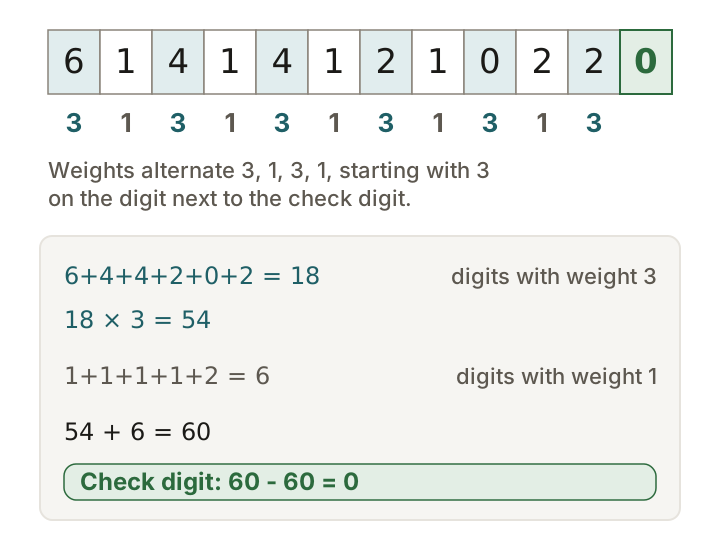
For a GTIN-12, take the 11 digits before the check digit. Add the digits in positions 1, 3, 5, 7, 9 and 11 and multiply that sum by 3. Add the digits in positions 2, 4, 6, 8 and 10. Add the two results. The check digit is the smallest number that rounds the total up to a multiple of ten. Take 61414121022 as an example: the weight 3 digits add up to 18, which gives 54, the others add up to 6, the total is 60, and the check digit is 0. The full number is 614141210220. If the last digit of your number does not match what this sum gives for the digits before it, the number fails the check digit rule.
Fix it, then confirm it
Enter the manufacturer's number in the Inventory field, update the product and wait. Google says changes can take 24 to 72 hours to appear on the Needs attention page, and WooCommerce's FAQ says it can take around 3 days for Google to review product data. Do not judge the fix before then. When it has worked, the product no longer appears under Needs attention for that issue. If it is still listed after several days, open the product in Merchant Center and read the GTIN it holds, which may still be the old value.
What not to do
- Do not invent a number or reuse another product's GTIN. Google asks for the manufacturer-assigned value.
- Do not use numbers from the restricted or coupon ranges listed above.
- Do not put the GTIN in the SKU field. Google for WooCommerce reads the Inventory GTIN field for this.
- Do not rely on identifier_exists set to false. WooCommerce's FAQ calls that logic deprecated and says it can lead to errors and disapproved products.
- Do not fill the field for products that have no GTIN. Google says a seller's own or store-brand product does not need one, and to send a brand and an MPN instead.
Sources
- Google Merchant Center Help: GTIN (gtin)
- Google Merchant Center Help: How to fix Invalid value (gtin)
- Google Merchant Center Help: How to fix Missing value (gtin)
- GS1 US: How to calculate a check digit manually (PDF)
- WooCommerce source: the GTIN, UPC, EAN, or ISBN field on the Inventory tab
- WooCommerce source: duplicate GTIN check in WC_Product
- Google for WooCommerce source: how the GTIN is read from the product
- Google for WooCommerce source: the GTIN input on the extension's own tab
- Google for WooCommerce changelog (version 2.9.0 maps the WooCommerce GTIN field)
- WooCommerce docs: Google for WooCommerce FAQ
Fix a GTIN issue in WooCommerce
- Find the right barcode. Take the GTIN from the product's packaging or from the manufacturer. A product without a manufacturer barcode has no GTIN: skip to the last step.
- Check the length and the check digit. Count the digits: 8, 12, 13 or 14 are accepted. Recompute the check digit with the GS1 method above if the issue says the value is invalid. Convert an ISBN-10 to ISBN-13 first.
- Open the product. In WordPress, go to Products and open the product Google flagged.
- Enter it in the WooCommerce GTIN field. Under Product data, open the Inventory tab and fill in the field labelled GTIN, UPC, EAN, or ISBN (WooCommerce 9.2 and later). Google for WooCommerce reads this field since its version 2.9.0.
- Leave the extension's own GTIN field alone. If the Google for WooCommerce tab still shows a GTIN field, it is read-only or hidden in current versions and points to the Inventory tab.
- Update and wait for the sync. Click Update. WooCommerce's FAQ says a created or updated product syncs through an async job, and that Google can take around 3 days to review product data. Merchant Center says changes can take 24 to 72 hours to show on the Needs attention page.
- No GTIN at all. Leave the GTIN blank. For products without one, WooCommerce's FAQ suggests your domain name as the brand and your SKU as the MPN.
Questions
Can I put the GTIN in the SKU field?
No. Google for WooCommerce reads the field labelled GTIN, UPC, EAN, or ISBN on the Inventory tab, not the SKU. WooCommerce's FAQ suggests using the SKU as the MPN.
Which barcode prefixes does Google refuse?
Google's GTIN page says restricted ranges with prefixes 02, 04 or 2 and coupon ranges with GS1 prefixes 05, 98 or 99 must not be submitted. ISBN-13 numbers are accepted as GTINs.
My products are handmade. What do I enter?
No GTIN. Google says a product with no GTIN does not need one, and not to guess or invent a value. Give a brand and an MPN instead.
Can two products share one GTIN?
Google says not to submit the same GTIN for several products with the same country, language and variant values, and each variant needs its own. WooCommerce also refuses to save a GTIN that another product already uses.