Price mismatch in Google Merchant Center for WooCommerce: VAT, sale prices and what to check
· Updated
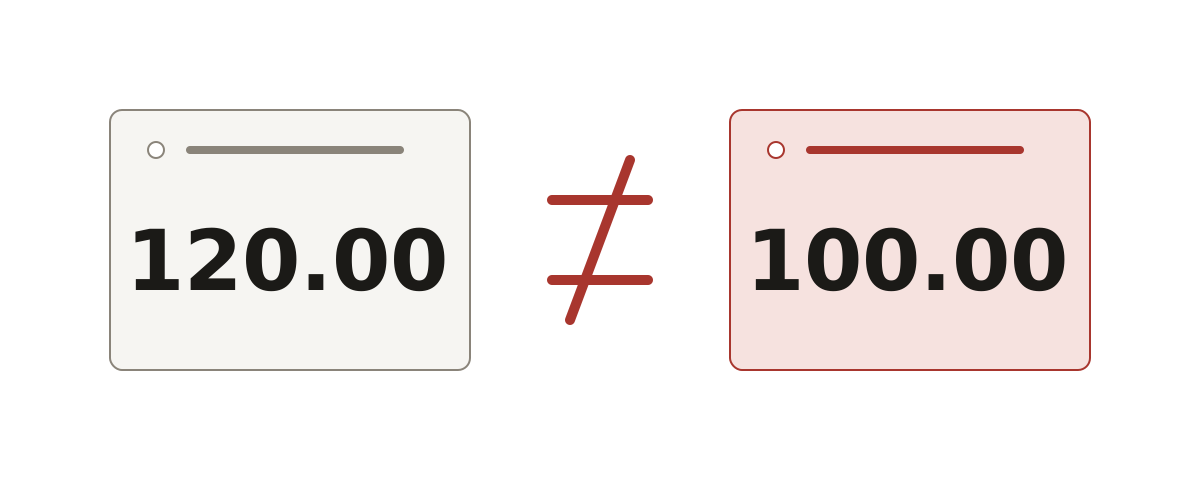
Google compares the price in your product data with the price on the product page and at checkout. Google's price page says the amount and currency you submit must match both. If they do not, Google disapproves the product and tells you in your Merchant Center account. In a WooCommerce store there are four usual places to look: tax, the sale price, a price that changed after the last sync, and the currency.
The tax rule depends on the country
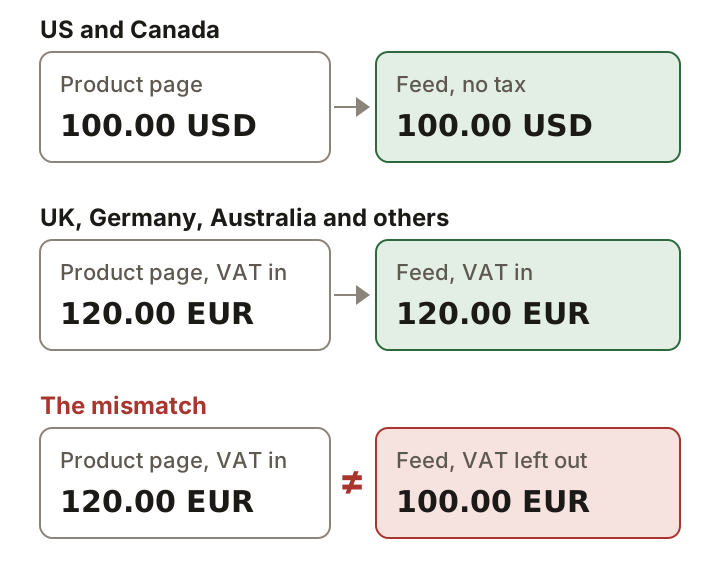
For the United States and Canada, Google says not to include any taxes in the price attribute: not sales tax, GST, VAT or import tax. For the countries Google lists, which include Australia, France, Germany, Japan and the United Kingdom, the price must include VAT or GST, and the landing page price must match it.
WooCommerce's FAQ for Google for WooCommerce says prices for markets that target the US or Canada are sent without tax. For other countries the extension adds tax from the tax rates you set in WooCommerce. Its code does this when it builds the price, not when the page is displayed. A shop in a listed country that displays prices without tax can therefore show one number on the page and send another.
Check the usual causes
| Cause | Where to look |
|---|---|
| Tax in or out | WooCommerce > Settings > Tax: the rates for the country, and Display prices in the shop (Including tax or Excluding tax). |
| Sale price | Product data > General: Regular price, Sale price and the Schedule link for sale dates. The extension sends the regular price as the price and the sale price separately. |
| Stale data | Merchant Center's price troubleshooter asks whether the feed was uploaded more than 48 hours ago. |
| Currency | The extension sends the primary store currency. Google says not to change the landing page price based on a user's location. |
| Price changed by a plugin | The extension treats an active price that is below the regular price as a sale price, which covers plugins that change the price without setting a sale price. |
On sale prices, Google's page says the sale price attribute is for how much you charge during a sale. The extension also sends the sale dates. If the sale ends on your site and the feed still carries the old sale price, or the sale starts on the page and not in the data, the two disagree. Check the schedule, not only the price.
On currency, the FAQ says the primary store currency is used when products sync. A currency switcher that shows shoppers a converted price on the page can leave Google with a different number than the page shows, and Google's price page says the price must not change with the shopper's location.
Diagnose it
Open the product page in a private window and note the price a shopper sees for the country Google flagged. Then open the product in Merchant Center under Products and Needs attention. Google's price troubleshooter lists the issue names, including Mismatched value (page crawl) [price], and asks the same few questions: is VAT or tax set up for the target country, is a sale price in use and does it equal the page, does the price in Final Attributes equal the page, does microdata exist and does it carry the same price, and was the feed uploaded more than 48 hours ago. Work through them in that order.
Update the extension first. Its changelog for version 3.9.2, dated 2026-08-31, lists a fix that prevents VAT from being removed or added twice when syncing tax-inclusive product prices. Version 3.10.0 is dated 2026-10-20.
Structured data on the page
Google's price troubleshooter asks whether you have microdata set up and whether its price equals the landing page, so the markup on the page is one more number that has to agree. Google says automatic item updates for price use Schema.org microdata on your landing page and only happen when Google crawls that page. For product markup, Google requires a price greater than zero and a three-letter ISO 4217 code in priceCurrency, and its examples use a plain number. Schema.org adds that the decimal separator is a full stop and that ambiguous symbols such as the dollar sign do not belong in the value.
{
  "@context": "https://schema.org/",
  "@type": "Product",
  "name": "Example product",
  "offers": {
    "@type": "Offer",
    "price": 120.00,
    "priceCurrency": "EUR",
    "availability": "https://schema.org/InStock"
  }
}
Confirm it worked and what not to do
After you fix the price or the tax rate, update the product. WooCommerce's FAQ says a created or updated product syncs through an async job, and that Google can take around 3 days to review product data. Then check the Needs attention tab. Do not judge the fix on the same day.
- Do not change the page price by the shopper's location. Google says the landing page price must not change based on a user's location.
- Do not put member or loyalty prices in the price or sale price attributes. Google says to use the loyalty program attribute.
- Do not use more than two digits after the decimal point. Google's price format is a number plus an ISO 4217 currency code, such as 15.00 USD.
- Do not leave a country you sell to without tax rates. The extension takes tax from your rates.
Sources
- Google Merchant Center Help: Price (price)
- Google Merchant Center Help: I need help fixing my price issue (troubleshooter)
- Google Search Central: Merchant listing structured data
- Schema.org: Offer (price and priceCurrency)
- WooCommerce docs: Google for WooCommerce FAQ
- WooCommerce docs: Setting up taxes in WooCommerce
- Google for WooCommerce source: how prices and tax are built
- Google for WooCommerce changelog (3.9.2 and 3.10.0)
- WooCommerce source: the price fields on the General tab
Fix a price mismatch in WooCommerce
- Update Google for WooCommerce. Go to Plugins and update Google for WooCommerce to the latest version. Version 3.9.2 fixed VAT being removed or added twice on tax-inclusive prices.
- Compare the two prices. Open the product page in a private window and note the price a shopper sees for the country Google flagged. Compare it with the price in the Merchant Center issue.
- Check the product prices. In the product editor, open Product data and the General tab. Check Regular price and Sale price, and use the Schedule link to check the sale dates.
- Check tax settings. Go to WooCommerce > Settings > Tax. Outside the US and Canada, make sure the tax class has rates for that country, because Google for WooCommerce adds tax from them, and check Display prices in the shop.
- Check the page's structured data. If the page carries structured data, make sure its price and priceCurrency equal what the shopper sees.
- Update and wait for the sync. Click Update. WooCommerce's FAQ says a created or updated product syncs through an async job, and that Google can take around 3 days to review product data.
Questions
Should my Google price include VAT?
In the countries Google lists, which include Australia, France, Germany, Japan and the UK, yes: it must match what shoppers see. In the US and Canada, no: submit it without tax.
Does a sale price cause a mismatch?
It can if the sale shows on your site and not in the product data, or the reverse. Google's sale price is what you charge during the sale. Check the sale dates too.
Can Google correct prices automatically?
Google's price page recommends enabling automatic item updates for price. It says they use the structured data on your landing page and only happen when Google crawls that page, and that you still need to resubmit product data regularly.