Image problems in Google Merchant Center for WooCommerce products: placeholders, overlays, size
· Updated
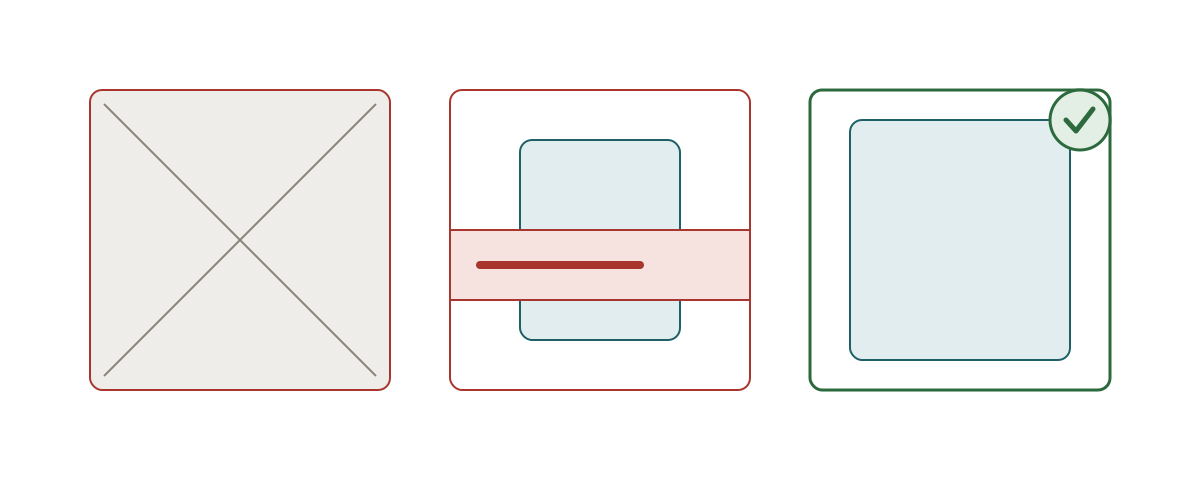
Google uses the main product image in Shopping results, so an image that does not show the product clearly is a problem even when the page looks fine to you. Image issues in Merchant Center come in two groups: images Google will not accept because of what is on them, and images that fail on size, format or address. The first group needs a new photo. The second often needs only a different file or URL.
What Google does not accept
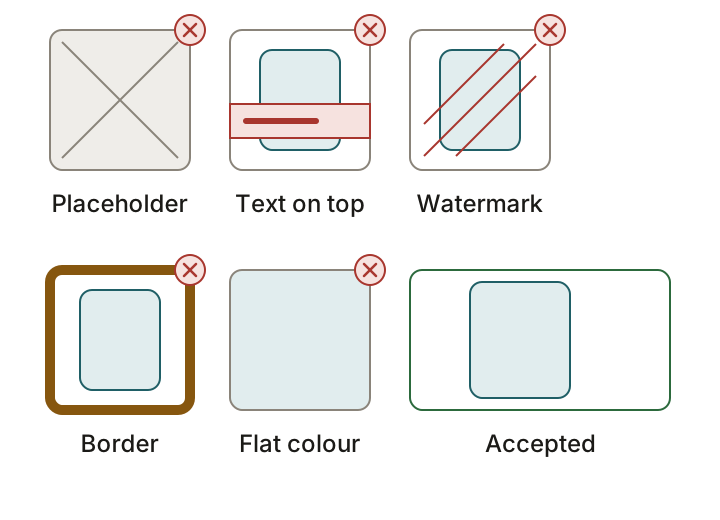
Google's image link page lists what is not accepted: promotional overlays such as calls to action, prices, shipping offers or promotional adjectives; barcodes, QR codes, watermarks, copyright symbols and superimposed logos or store names; placeholders, store logos, stock icons and generic graphics or illustrations that do not show the product; images with borders; and products that are not sold together with the main product. It also says not to use a single-colour image that is only a square of colour.
Some categories are exempt. Generic graphics are allowed for Hardware, Vehicles & Parts and Computer Software, and single-colour images for paint-type categories such as Vehicle Paint and Craft Paint, Ink & Glaze. Outside those, a graphic that does not show the product is not accepted.
Size and format
The size rule is changing. Today Google's "Image too small" page sets a minimum of 100 x 100 pixels for most products and 250 x 250 for apparel. Google has announced a new minimum of 500 x 500 pixels for all product categories, for both the main image and additional images, with enforcement starting on January 31, 2027. Until then smaller images get warnings, not disapprovals. Google's pages give April 14, 2026 and July 2026 as dates for the warnings to start, so you may already see "Image too small for upcoming enforcement" in the Needs attention history. Google may also serve an optimised version of an image below 500 x 500 and mark it with a warning. To replace that version, submit a larger image.
| Rule | Value |
|---|---|
| Minimum size now | 100 x 100 pixels; 250 x 250 for apparel |
| Minimum size from January 31, 2027 | 500 x 500 pixels for all products |
| Recommended size | Around 1500 x 1500 pixels or above |
| Largest allowed | 64 megapixels and 16 MB |
| File types | JPEG, WebP, PNG, GIF, BMP and TIFF. The file extension should match the real format. |
| Product in frame | Roughly 75 to 90 percent of the image |
| Image URL | http or https, ASCII characters only, 1 to 2,000 characters |
Where the image comes from in WooCommerce
In the product editor the main image is the box called Product image, where you click Set product image. The Product gallery box holds the extra images. Google for WooCommerce sends the full-size file of the Product image as the main image. If a product has no Product image, its code uses the first gallery image instead. A variation with no gallery of its own uses its parent's gallery. It sends up to 10 additional images. So a clean main image matters, but so does the first gallery image on a product that has no main one.
WooCommerce's FAQ adds a point about file names. Product data requires ASCII or Latin-only characters, and image URLs with non-ASCII characters will likely be unsupported. It advises avoiding special characters such as parentheses or non-English characters in image file names. Since version 3.9.6, released on 2026-10-12, the extension also notifies you when synced products have main images smaller than 500 x 500 pixels.
Diagnose it
In Merchant Center, open Products and the Needs attention tab, then filter for the product. Open the issue and look at the image Google holds. Then work down this list. Is it a photo of the product, or a logo or a graphic? Is there text, a badge or a watermark on it? What is its pixel size? Does its URL contain spaces, accents or brackets? Does its extension match the real format? Finally, check that robots.txt does not block Googlebot or Googlebot-image from your image folder. Google's page says to allow both, and that robots.txt changes may take 24 to 48 hours to apply.
Fix it, then confirm
Replace the image with a real photo that shows the product, with no text or badge on it, and ideally around 1500 x 1500 pixels. Rename the file with plain letters and digits before you upload it. Set it as the Product image, update the product, and wait. Google's Image too small page says changes can take 24 to 72 hours to appear on Needs attention, and WooCommerce's FAQ says Google can take around 3 days to review product data. Look at Needs attention again after that. If an orange warning about an optimised image remains, upload a larger image.
What not to do
- Do not add a sale badge, price or shipping text to the photo. Google lists these as promotional overlays.
- Do not use your logo as the product image. Google rejects store logos and stock icons.
- Do not use one flat-colour square as a swatch image, except in the paint categories Google exempts.
- Do not leave timestamps or session IDs in the image URL. Google asks for stable URLs.
- Do not wait for January 31, 2027. Upload images that already meet 500 x 500 now.
Sources
- Google Merchant Center Help: Image link (image_link)
- Google Merchant Center Help: How to fix Image too small
- Google Merchant Center Help: Product data specification update 2026
- WooCommerce docs: Google for WooCommerce FAQ
- Google for WooCommerce changelog (3.9.6 adds the 500 x 500 notice)
- Google for WooCommerce source: how product images are chosen
- WooCommerce source: the Product image and Product gallery labels
Replace a product image Google rejected
- Open the product. In WordPress, go to Products and open the product Google flagged.
- Pick a clear photo. Use a real photo of the product, with no text, logo, badge or watermark on it. Google recommends around 1500 x 1500 pixels or above, and from January 31, 2027 the minimum is 500 x 500.
- Name the file plainly. Use letters and digits in the file name. WooCommerce's FAQ says non-ASCII characters in image URLs can make items unsupported, and advises avoiding special characters such as parentheses.
- Set it as the Product image. In the Product image box in the sidebar, click Set product image, choose or upload the new photo and save the choice. Check the Product gallery box too, because the extension uses the first gallery image when a product has no Product image.
- Update and wait for the sync. Click Update. WooCommerce's FAQ says a created or updated product syncs through an async job, and that Google can take around 3 days to review product data. Merchant Center says changes can take 24 to 72 hours to show on Needs attention.
Questions
Which image does Google use?
The main image, which in WooCommerce is the Product image. Google for WooCommerce sends its full-size file, and uses the first gallery image only when there is no Product image.
Can I add a sale badge to the photo?
No. Google does not accept promotional overlays such as prices, calls to action or shipping offers, and it does not accept watermarks.
What is the minimum image size?
Today Google's pages give 100 x 100 pixels for most products and 250 x 250 for apparel. From January 31, 2027 the minimum is 500 x 500 for all products.
Can my image file name contain accents?
Avoid it. Google's image URL rules ask for ASCII characters, and WooCommerce's FAQ says items with non-ASCII image URLs will likely be unsupported.